
.png)
.png)



Overview
The Work Orders page allows operators and managers to efficiently track and complete maintenance and operational tasks. Operators can view assigned tasks, mark them as complete, and update statuses, ensuring real-time communication and streamlined workflow. Managers can create, assign, and oversee work orders to ensure all necessary work gets done. Work orders can be standalone for one-off tasks, recurring for scheduled maintenance, or triggered from system notifications based on conditions or events. This is a new feature, currently in Beta.
What You Can Do on the Work Orders Page
Managing Work Orders
- Create, edit, and delete work orders
- Assign tasks to operators
- Set due dates and priorities
- Link work orders to assets for tracking history
- View task completion status
Operator Workflows
- View assigned tasks and plan shifts accordingly
- Mark tasks as "Not Started," "In Progress," "On Hold," "Cancelled," or "Completed"
- View task details, including standard operating procedures (SOPs), to ensure proper execution
- Add notes and updates for supervisors
- Search and filter tasks by category, priority, due date, and status
Task Tracking and Reporting
- Integrated To-Do Lists for clear task management
- View work order history for assets
- Enable real-time updates for better coordination
- Ensure traceability of completed work
The Work Orders feature enhances efficiency, accountability, and communication for both operators and managers, ensuring all plant tasks are completed effectively.
Manage Work Orders
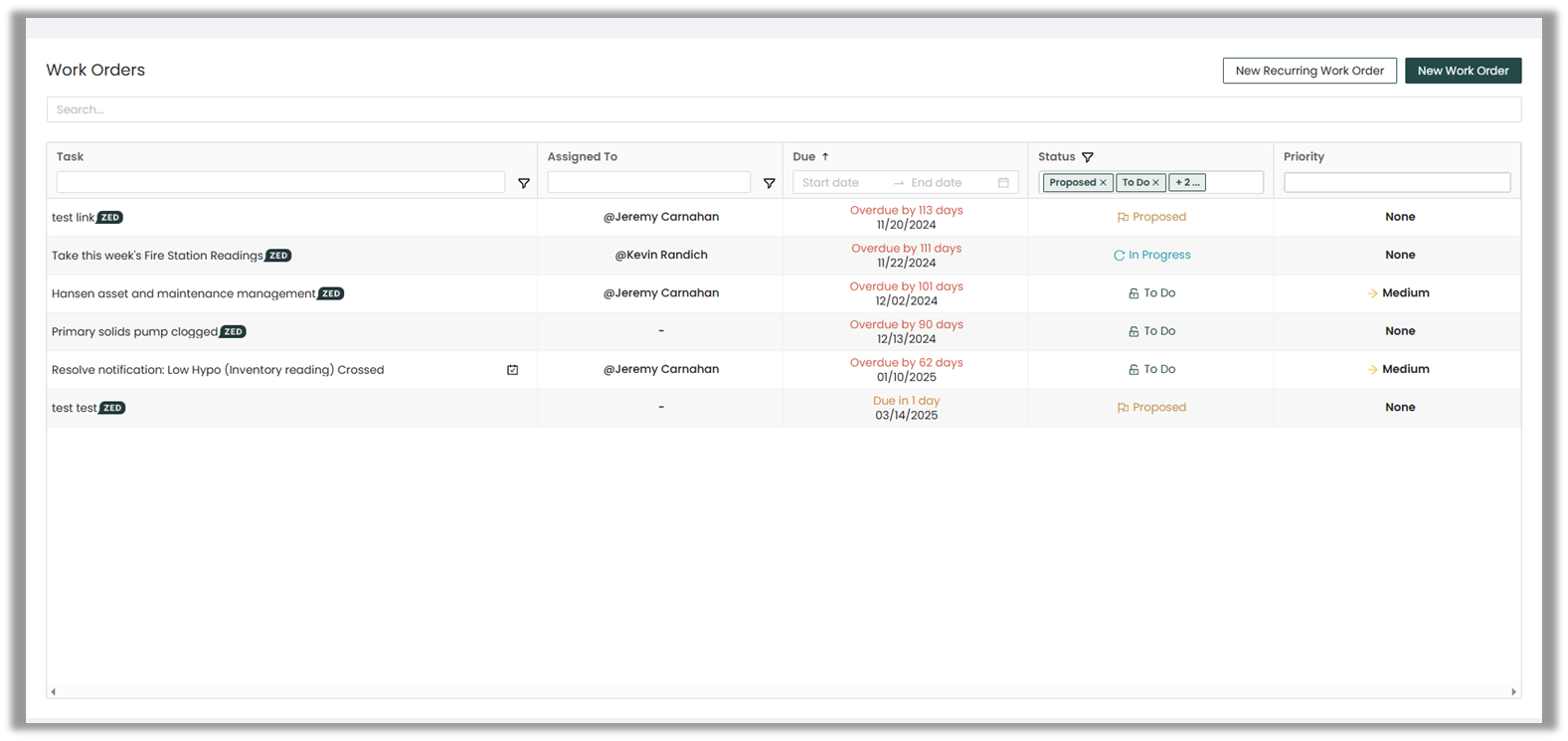
The Manage Work Orders section is the starting point for work order management.
At the top, you will find two buttons:
- New Recurring Work Order
- New Work Order
Creating a New Work Order
Clicking New Work Order will bring up the Create a Work Order Form, which includes the following fields:
- Title: Name the work order.
- Description: Provide details about the task.
- Assign To: Search for and assign the work order to one or more users.
- Due Date: Select a due date for task completion.
- Asset Link: Attach the work order to a relevant asset.
- Procedure Link: Attach a relevant procedure.
- Procedure Summary: Summarize the attached procedure.
- Priority: Choose from None, Low, Medium, or High.
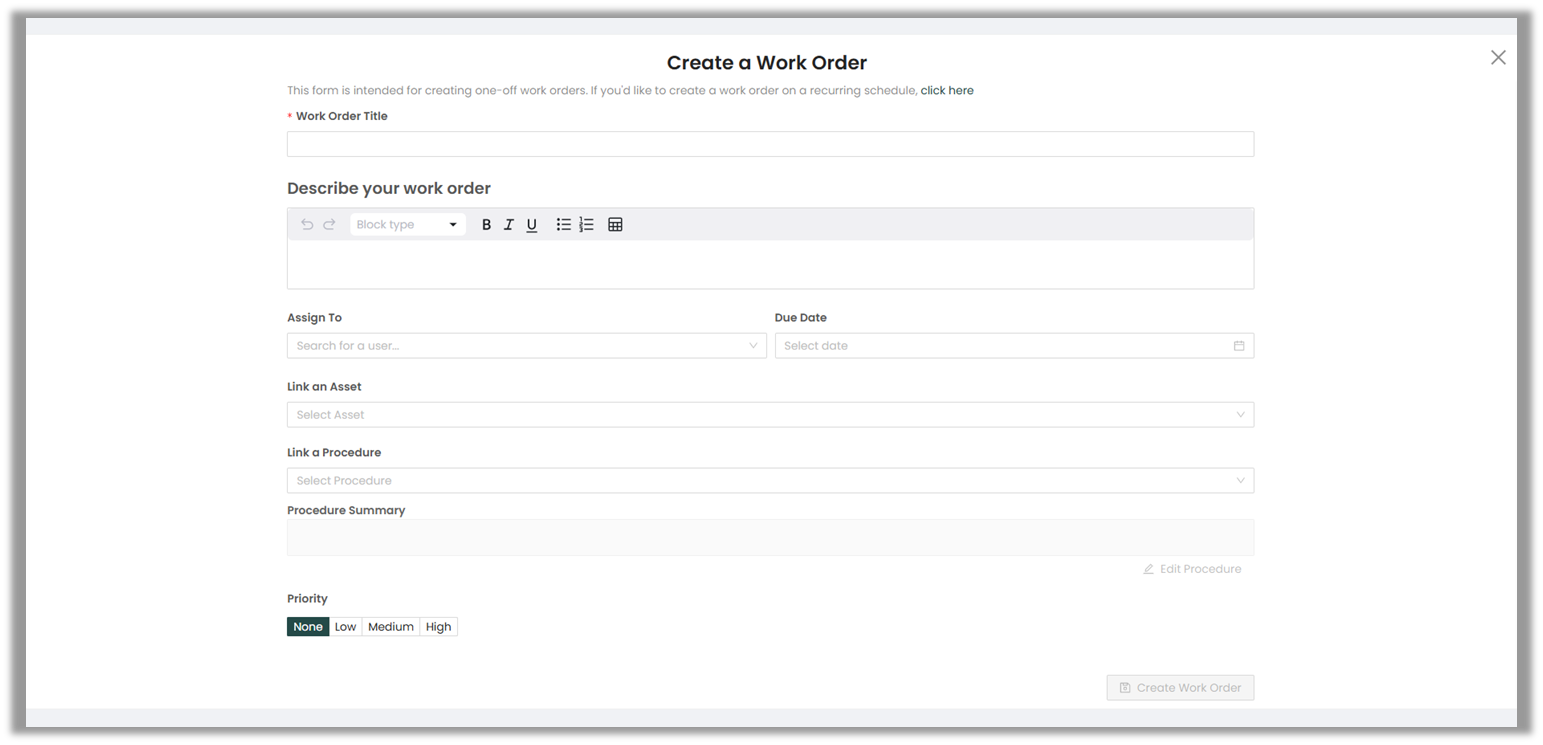
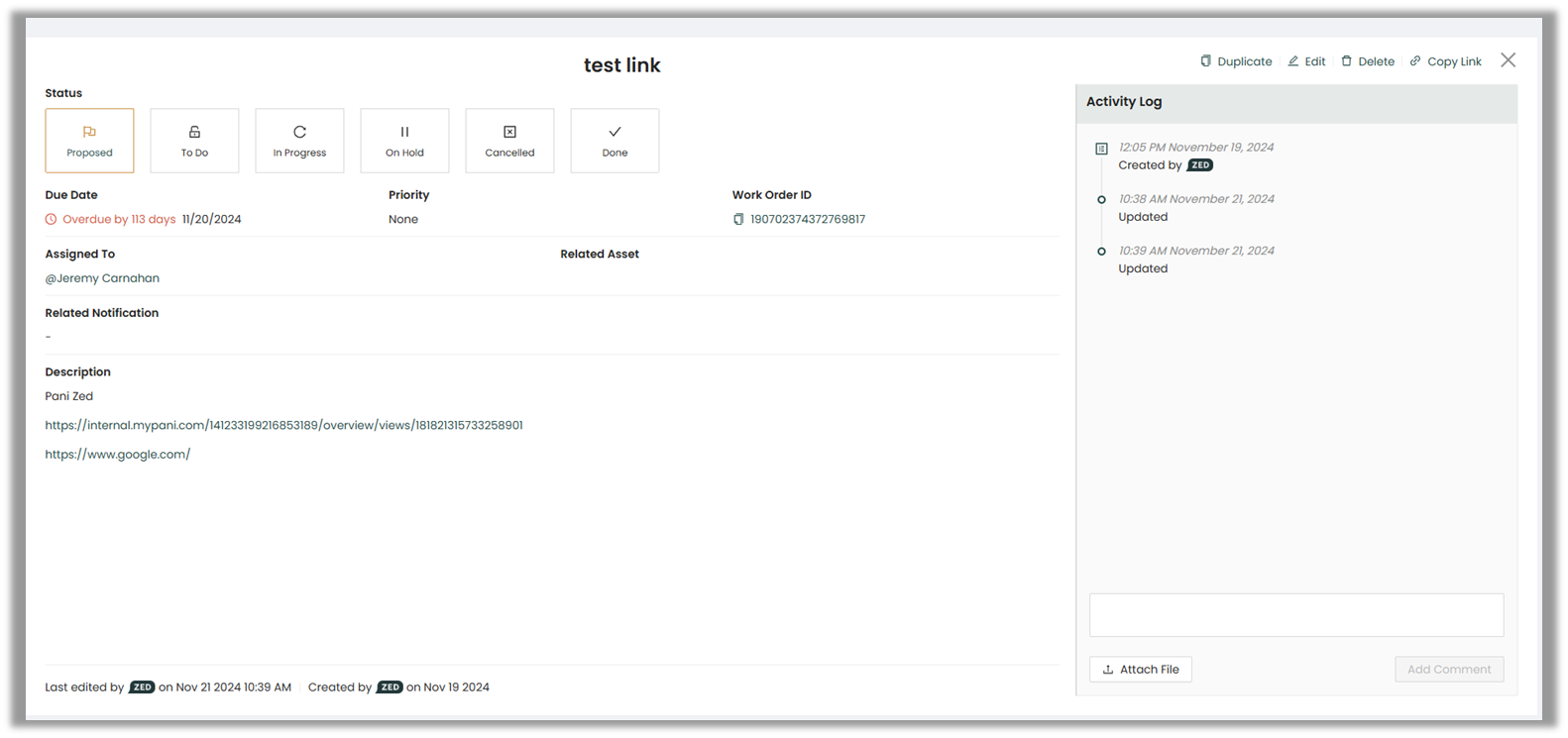
Once the form is filled out, clicking Create Work Order generates a new work order with a unique Work Order ID. The system also tracks the status of the work order, which can be set to:
- Proposed
- To Do
- In Progress
- On Hold
- Cancelled
- Done
Additionally, work orders can be duplicated, edited, deleted, or copied as a link. The system includes an Activity Log that records any changes made to the work order.
Recurring Work Orders
The Recurring Work Orders section allows users to set up automated work orders that repeat on a defined schedule.
Creating a Recurring Work Order
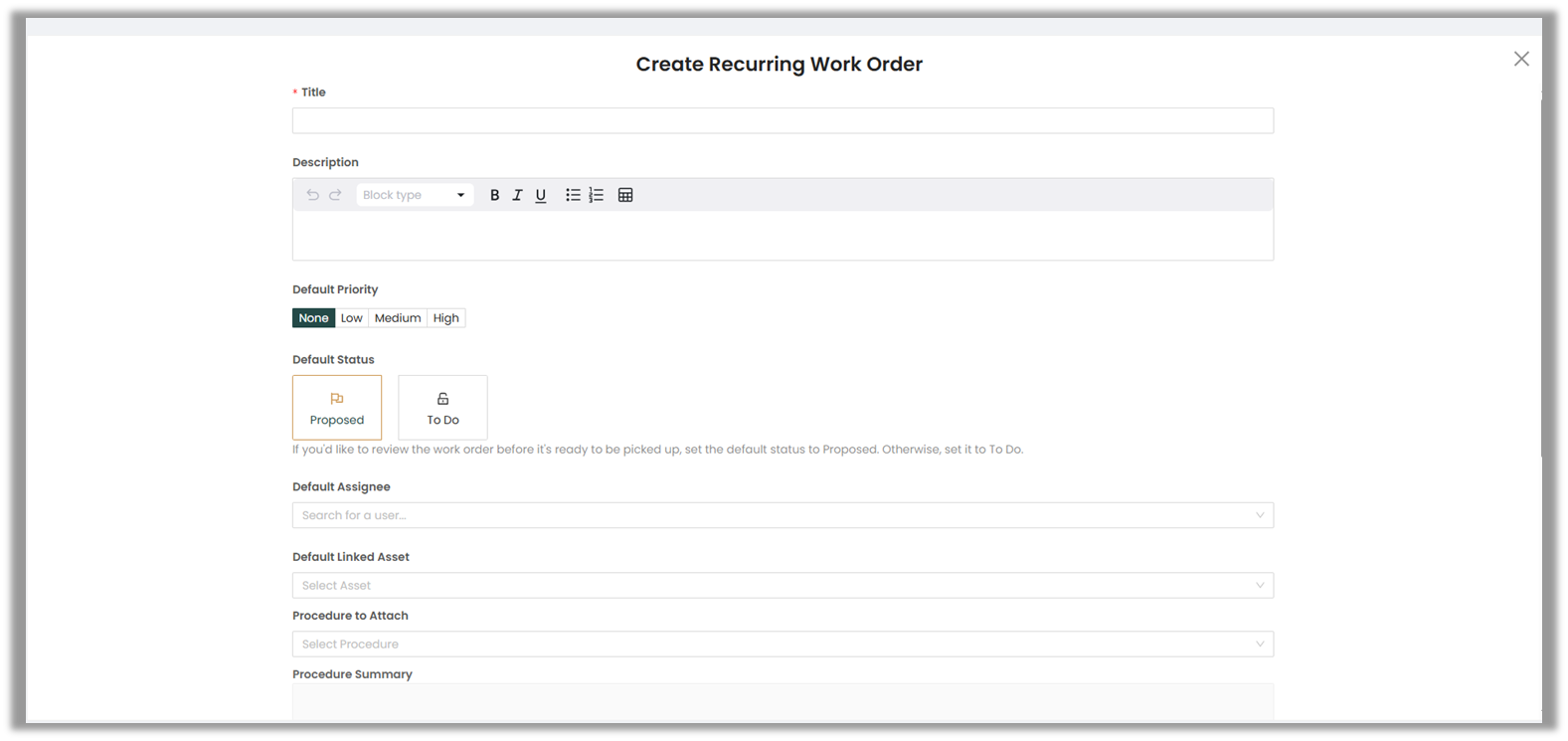
When creating a recurring work order, you will fill out a similar form as a regular work order, with the addition of scheduling options:
- Title & Description: Name and describe the recurring task.
- Default Priority & Status: Set a priority level and a default status (Proposed or To Do).
- Default Assignee: Assign a default user.
- Asset & Procedure Links: Attach relevant assets and procedures.
- Procedure Summary: Provide a brief overview of the procedure.
Scheduling Options
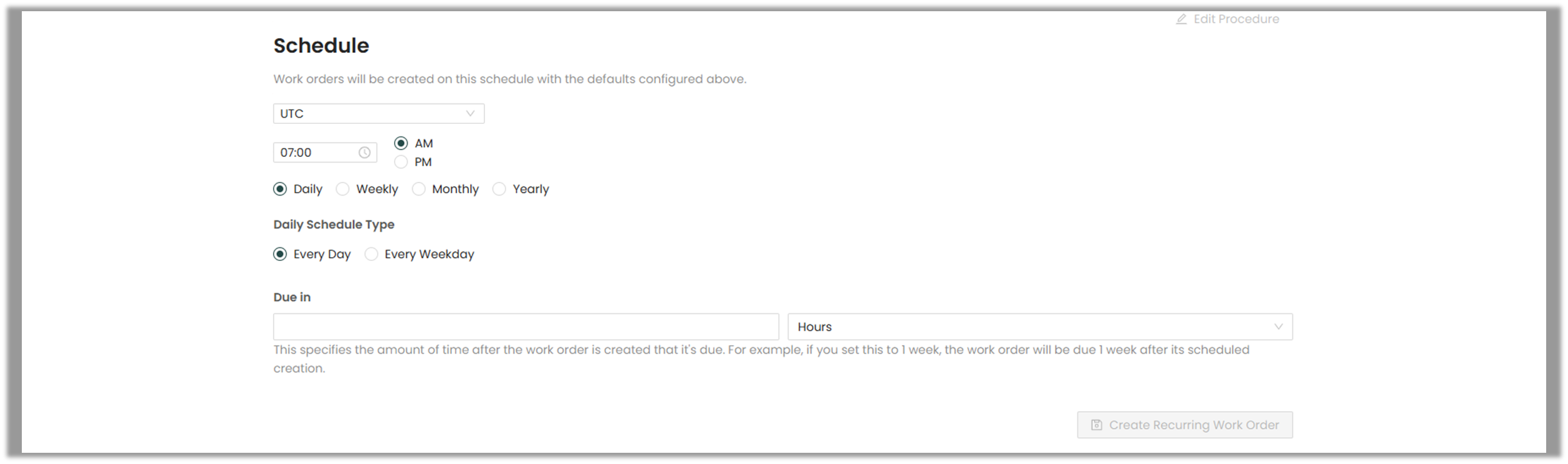
In addition to the above fields, recurring work orders include a Schedule Section with options to define the recurrence pattern:
- Frequency: Choose Daily, Weekly, Monthly, or Yearly.
- Daily Schedule Type: Select between Every day or Every weekday.
- Due Time: Define when the task is due after its creation (in hours, days, weeks, or months).
For example, setting the due time to 1 week means the work order will be due one week after its scheduled creation.
After filling out the form, click Create Recurring Work Order to finalize it.
Viewing Work Orders
- The Manage Work Orders section displays all created work orders.
- The Recurring Work Orders section lists all scheduled recurring work orders.
- Both sections provide an overview including task name, assignee, due date, status, and priority.
Procedures
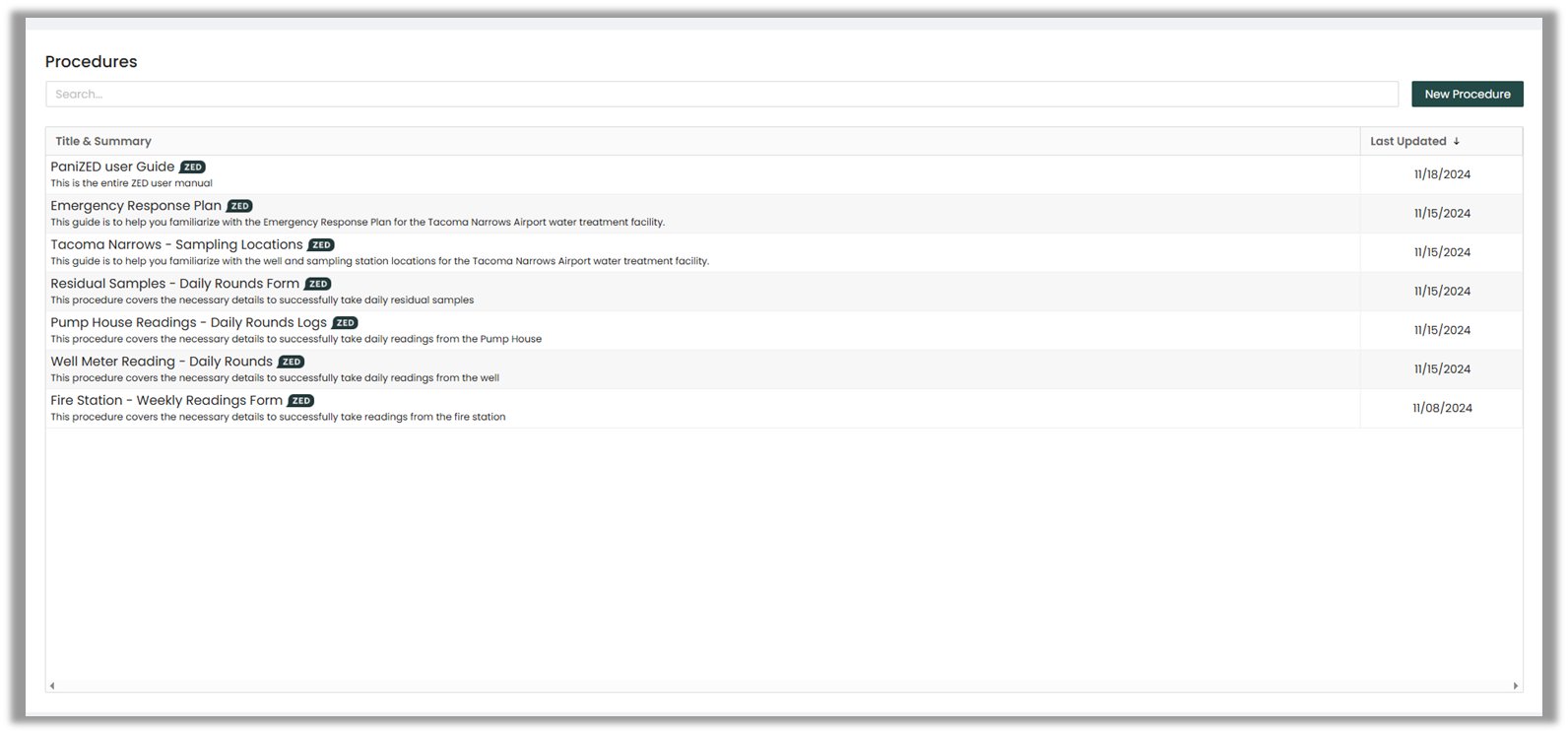
The Procedures section allows users to create and store plant-specific procedures that can be linked to work orders.
Creating a New Procedure
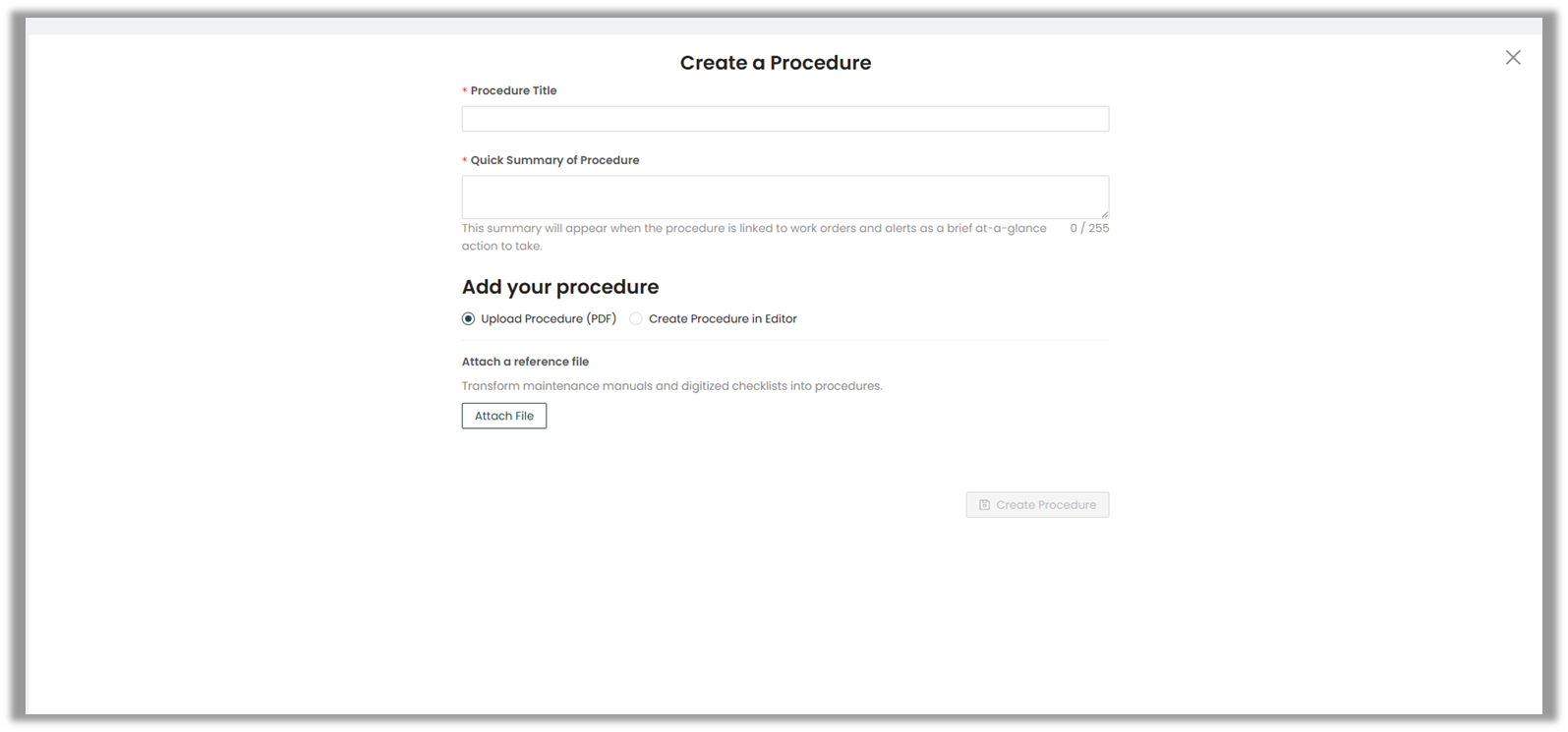
If no procedures exist, click the New Procedure button to access the procedure creation form:
- Procedure Title: Name the procedure.
- Summary: Provide a brief description.
- Upload Procedure: Attach a PDF file.
- Procedure Editor: Create a procedure directly within the platform.
Once created, procedures can be automatically linked to work orders and recurring work orders.
Assets
The Assets section allows users to manage and organize equipment or components that are relevant to work orders.
Viewing Work Orders by Asset
- You can select one or more assets from the asset page.
- The table view will then show all work orders associated with the selected assets, providing quick insight into asset-related tasks.
Managing Assets
- Right-click on an asset to access options like Edit, Delete, or Create Child Asset.
- This provides a flexible and hierarchical structure to represent physical or logical relationships between assets.
Naming Rules
- Asset names must be unique per plant per parent asset.
- You can have two assets with the same name only if they have different parent assets.
- P&ID tags must always be unique, even if under the same parent asset.
Assets are directly linkable within both regular and recurring work orders, enabling powerful filtering, tracking, and historical performance review across all operational areas.
This concludes the full overview of the Work Orders page features. For further assistance, please contact your Customer Success representative by submitting a ticket or emailing [email protected], or consult additional Help Center resources.

