
.png)
.png)



The Ingress Dashboard allows you to review various aspects of the ingress payload to determine proper functionality.
 NOTE: You must have Administrator credentials to access the Admin Configure page. NOTE: You must have Administrator credentials to access the Admin Configure page. |
To enable the Ingress Dashboard, do the following:
- On the Platform, click on the "Admin Configure" page.
- Locate the "Ingress Dashboard" in the Tools menu on the left of the screen and click on it.
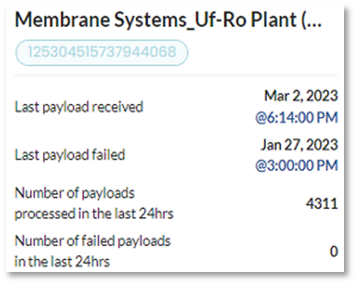
Here you will see the Data Ingress Page. The top of the main screen will display the account name followed by the non-editable plant name that Pani provides (This is the IoT/device name for the EWON or MQTT).
The numbers in the blue bubble indicate the type of ingress used. This may be helpful if you have more than one ingress type, as you can refer to the unique numbers to differentiate them.
You can also see and verify your data payload and if it was sent and received correctly.
Additionally, you can select timelines in which you may want to view specific payload during a particular timeline.

The "?" tooltips provide you with additional information on selected columns below such as the "Status" of a particular entry, and if it was  or still processing.
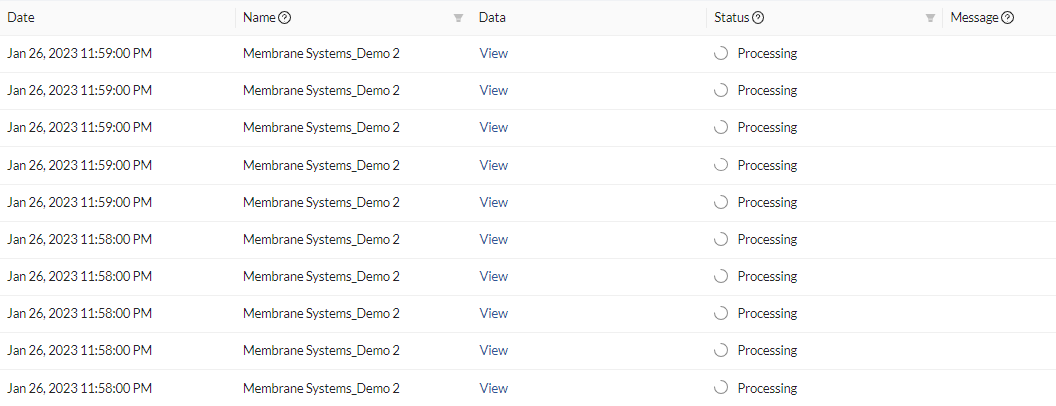
By Clicking on the View button in the Data column, you can see the payload that was sent and check if it was formatted correctly.
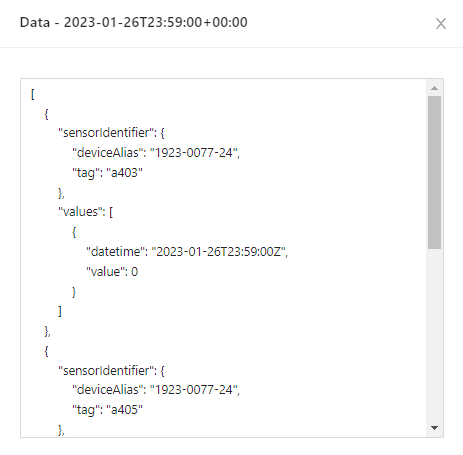
This is useful when troubleshooting issues to ensure the payload conforms to the following:
- Is in JSON format.
- Includes a “deviceId” field with a JSON string value (enclosed in quotes).
- Include a “timestamp” field whose value is an ISO 8601-formatted JSON string (enclosed in quotes).
- Sensor and or Tag values that are not enclosed in quotes.
See the REST API or MQTT Integration articles for additional information on payloads.

